2D Camera setup
When setting up our 2D game's main camera there are a few things to take into consideration:
- Game Resolution settings
- The Camera2D Node
In this tutorial we will cover how to set a games resolution at project start, how to create a camera for a 2D game, and how to setup the camera so it remains fixed or follows the player.
Game Resolution settings
A game's resolution is the width and height of the window in which the game is presented in. In Redot we call this the Viewport. When making a game, it is important to know who you are making the game for. For example, the screen resolution for a desktop PC can be flexible, while a smart phone or tablet may not.
Here are a few default resolutions to keep in mind when starting a new project from 2025 onwards.
- For desktop PC,
1920 x 1080 - For tablets,
768 x 1024 - For smart phones,
360 x 800
INFO
In most cases, these resolutions are well below what each platform can handle. These are just useful starting points. It is helpful researching the platform you wish to create a game for, to see what they recommend.
To set our game's resolution Click project in the top left, then project settings

For the following example, we shall assume we are making a game for desktop PC. For any other platforms, setting the resolution is the same.
Click Display on the left, then window beneath that. You will now see our game's current resolution under Size. Change settings viewport width to 1920, and viewport height to 1080. We can leave the Mode set to windowed for the time being.
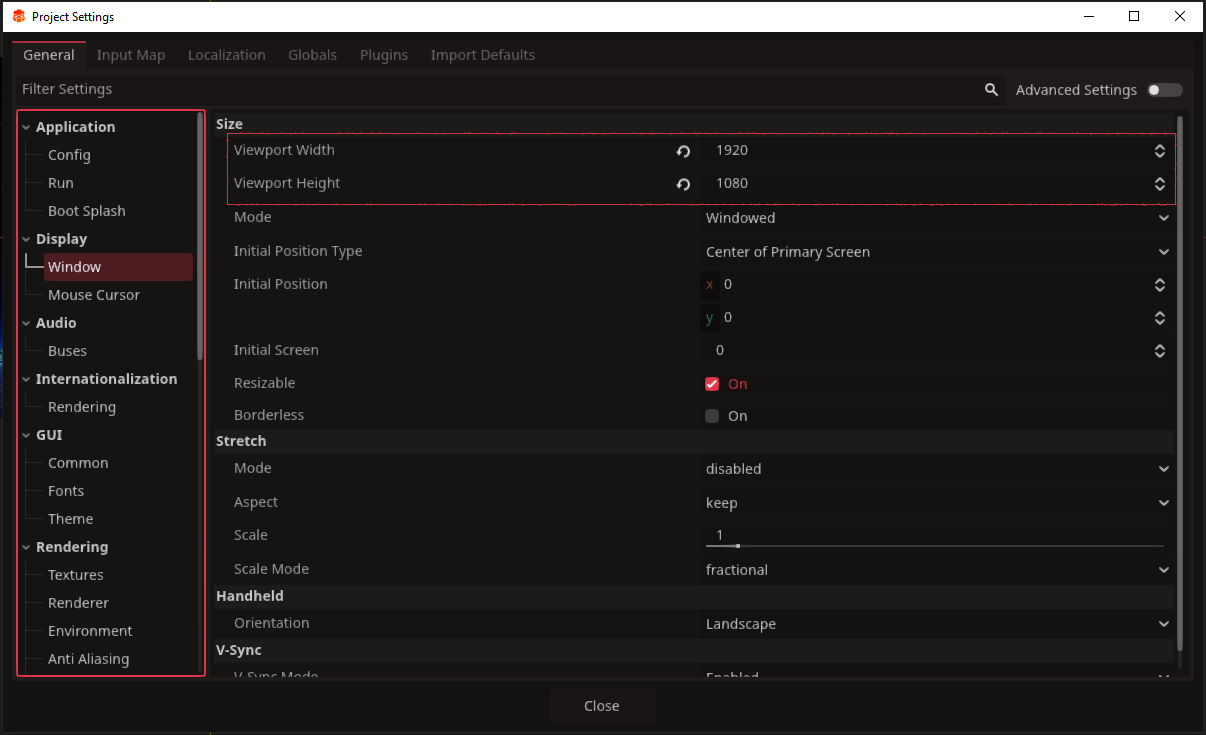
Once you have set our resolution, you can close the project settings.
The Camera2D Node
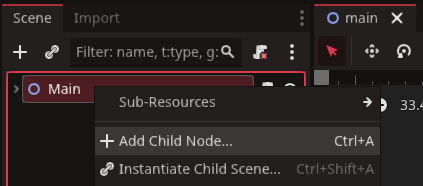
It's time to create a camera2D. We can add this by right-clicking our new scene Main in the top left and adding a child node
This will open the Create New Node panel. Type 'camera' into the searchbar, press enter, then select Camera2d and click Create.
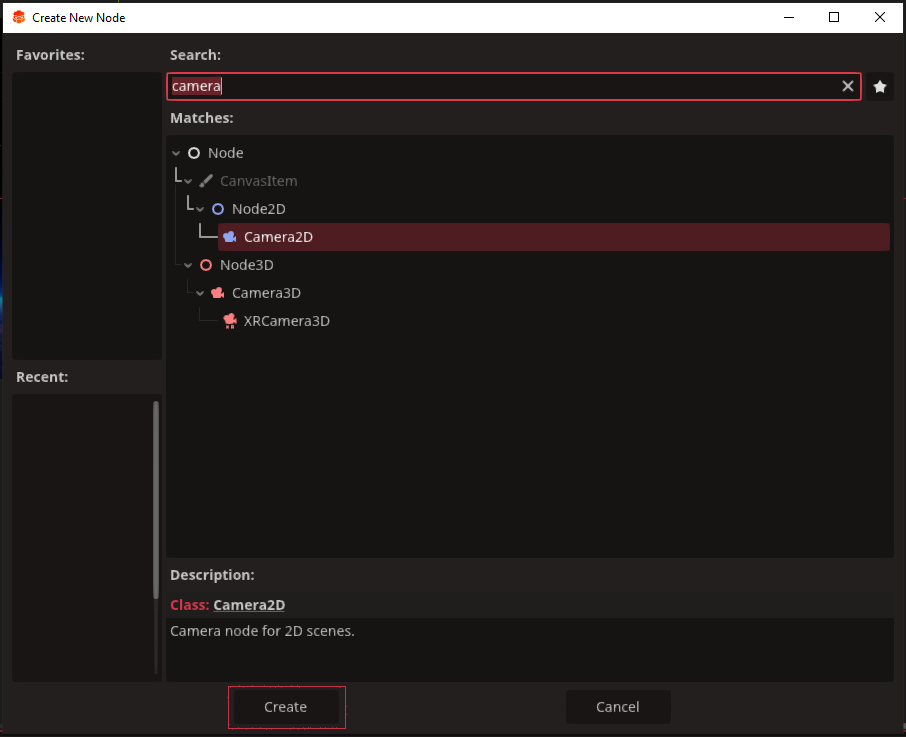
Our camera will be a child of Main scene node. This means that it will not move by itself. It is important to remember that if we make the camera a child of a different scene, it may be influenced by that node's position or movement.
This camera will be set automatically to the coordinates of Vector2.ZERO, the centre of your game scene. For a fixed camera setup, your work here is done. Otherwise we will have more tutorials on more dynamic setups for your camera.